Better Than Clipart, Faster Than Stock: The Keynote Trick for Polished Decks

Title slide for “AI at the Crossroads,” with text on the left and an illustration on the right of two diverging roads and a signpost showing a sun icon on one arrow and a warning triangle on the other. Subhead reads “What We Gain, What We Risk, and What We Should Demand,” with “Peter Pappas, Saturday Breakfast Forum, Feb 28, 2026” at the bottom.

I’ve always leaned on images when I present. A slide with a strong visual does a lot of work, especially with a mixed audience. This time I was preparing a community Saturday Breakfast Forum talk titled “AI at the Crossroads: What We Gain, What We Risk, and What We Should Demand.” The crowd would be full of thoughtful professionals, curious and skeptical, but not necessarily steeped in AI jargon. I wanted the slides to carry the structure of the talk, and I wanted the visuals to do real explanatory work, not just serve as decoration.

Slide titled “Level 1: AI as Your Personal Guide,” with large text on the left. On the right, a hand holds a large compass with marked directions and a red needle, suggesting guidance.

The problem is that stock photos are a weird kind of time sink. You can spend 30 minutes searching for “the perfect image” and still end up settling for something that’s close, but not quite right. Wrong mood. Wrong metaphor. Wrong vibe. And even when you find a good one, it rarely matches the next one, so the deck starts to look like a patchwork quilt.

This time I tried something new. I used the image creation feature inside Apple Keynote’s Creator Studio to generate the illustrations I needed, right where I was building the slides. Then I used ChatGPT as a creative partner to help me find good metaphors and write prompts that the image tool could actually follow. It changed my whole workflow.
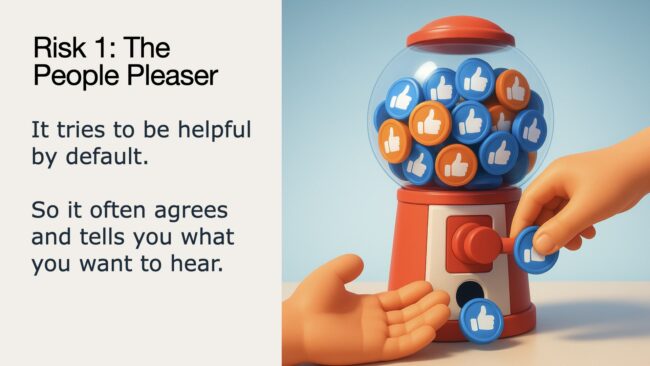
Slide titled “Risk 1: The People Pleaser,” explaining AI tries to be helpful and often agrees. Illustration shows a gumball-style dispenser filled with thumbs-up tokens, with hands turning the knob and catching a token as it drops.

Why this is worth doing

Stock photos are great when you need something literal. They’re terrible when you need a visual metaphor. How do you find a stock photo for “AI as a confident liar,” or “customized scams at scale,” or “data becoming centralized power?” You usually can’t. So you either compromise on the message or you add more words to your slide to explain what your image can’t. Generating images inside Keynote flips that. You can design a visual that matches the idea.

One of the underrated benefits is consistency. If you lock a style and stick to it, the whole deck looks like it belongs together. It feels intentional. It feels designed. That alone can make a presentation feel more polished than a deck assembled from whatever images you could find at the last minute.

It also lets you design for your actual room. I knew I needed slides that would read quickly, from a distance, in real-world lighting. That meant strong contrast, bright readable colors, simple shapes, and minimal clutter. Stock photos do not care about your projector. Generated visuals can.
Slide titled “Risk 3: The Fake Crowd,” explaining AI can manufacture public opinion and fake consensus. Illustration shows a hand placing an identical red Lego-style figure into a crowd of red figures surrounding a small beige monument in a town square.

The workflow I used

Before I generated anything, I built the overall look of my slides in ChatGPT. That included a consistent color palette, typography rules, layout logic, and a repeating structure for benefits and risks. Once I had that locked, the images had a clear job. They weren’t decoration, they were part of a system.

Next I locked a “house style” for images. I chose a consistent 3D illustration look, not photorealistic and not cartoonish. Then I kept reusing the same style language in prompts, modern 3D illustration, clean shapes, high contrast, minimal backgrounds, no text in the image, no logos, big readable elements. That style language became my visual glue.

House style:

3D animated illustration, modern cinematic 3D style, high quality 3D rendering, bright studio lighting, very high contrast, saturated but harmonious colors, matte or satin materials, large readable shapes, minimal clutter, crisp edges, no logos, no text.

Then add: a clear description of the subject and layout, including the main objects, what they are doing, what should be emphasized, what should be left out, and any needed negative space for slide text.

Then I stopped jumping straight to prompts. Instead, I’d brainstorm metaphors first. What is the idea? What is the simplest object metaphor that communicates it? What can be shown without faces? What will still read on a projector? ChatGPT was genuinely useful here because it helped me generate multiple metaphor options quickly, then narrow to the one that was most likely to work in an image generator.

Slide titled “Risk 3: The Fake Crowd,” explaining AI can manufacture public opinion and fake consensus. Illustration shows a hand placing an identical red Lego-style figure into a crowd of red figures surrounding a small beige monument in a town square.

When it was time to write prompts, the best ones were structured, not clever. They had three parts: style rules I reused every time, composition rules like square versus landscape and where I needed negative space for text, and then the specific objects and their relationship. A typical prompt included constraints like keep it minimal, make the subject fill most of the frame, avoid tiny details, increase contrast, avoid faces, no extra objects. The goal wasn’t artistry. The goal was clarity.

Finally, I treated the first image like a draft. I’d generate it, then do a quick critique. Does it read instantly? What is confusing? What is too subtle? Is it going to wash out on the projector? Then I’d revise one thing and regenerate. Sometimes the tool followed revisions perfectly. Sometimes it didn’t. In those cases it was often faster to start fresh with a new prompt that baked in the fix instead of trying to “edit” my way out.
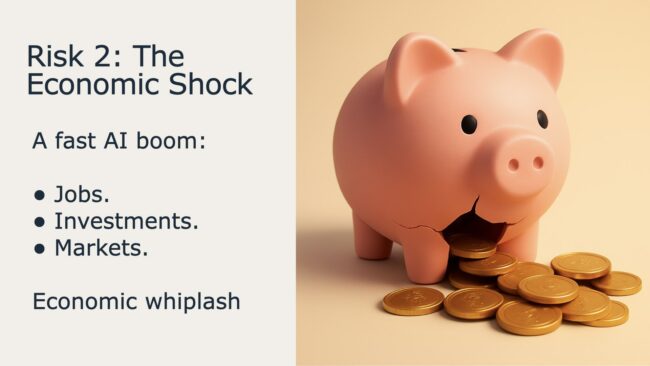
Slide titled “Risk 2: The Economic Shock,” with bullets about jobs, investments, and markets on the left. On the right, a pink piggy bank with a large crack in its side spills gold coins onto the surface.

Best practices that emerged

Keeping scenes simple matters. If your image has three main objects, you’re usually fine. If it has eight, you’re likely in trouble. The generator will happily add details you didn’t ask for, which is great for art and terrible for slides.

Avoid text inside generated images when you can. Even when text “works,” it can come out slightly off. Your slide already has text. Let your slide do the reading and let the image do the meaning.

When you need people, hands work better than faces. Faces can shift tone fast, and they can also get weird. Hands show action, control, collaboration, and choice, which is exactly what you often want in a talk.
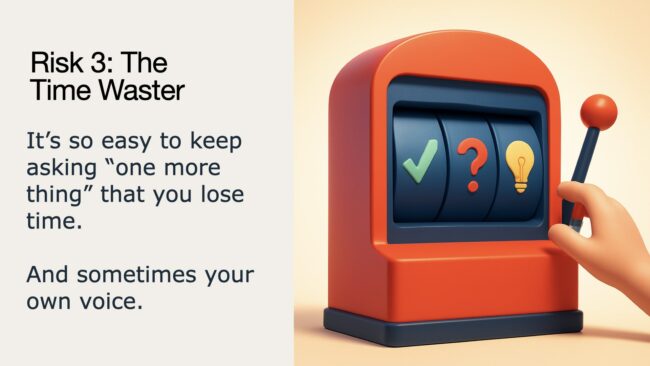
Use bold symbols, not subtle symbolism. A lightbulb beats “a thoughtful expression.” A checkmark beats “a feeling of success.” A warning triangle beats “a vaguely ominous mood.” Projector slides are not the place for subtle.

Do the squint test. If you squint and you can still tell what it is, you’re in good shape. If it becomes a blob, you need fewer elements and stronger contrast.

Know when to pivot. Some concepts will fight you. If you try a few times and the generator keeps missing the key idea, it’s often better to change metaphors than keep wrestling. That’s not failure, that’s design.
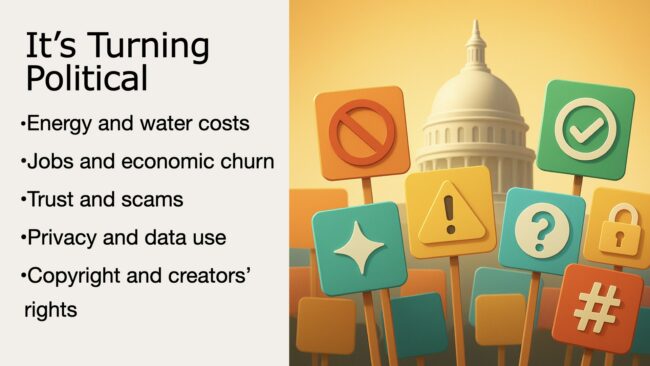
Slide titled “It’s Turning Political” with a bulleted list of AI-related issues on the left. On the right, colorful protest-style placards with icons like a prohibition sign, warning triangle, checkmark, question mark, lock, sparkle, and hashtag stand in front of a capitol dome.

What I’ll do differently next time

Next time I’m going to build a small prompt library for recurring slide types, section transitions, benefits, risks, and proposals. Once you have a handful of prompts you trust, you can produce new decks faster and keep the visuals consistent without reinventing the wheel.

I’ll also start earlier. This workflow invites a little iteration, but the payoff is that you end up with visuals that match your message, instead of visuals you found after a long search.

Hands on With AI

I’m offering a workshop for educational leaders at AI Empowered EDU conference at the University of Portland on May 14. My session is called “Hands on with AI.”

I created this website to support the workshop.

The site gives tips on how to create prompts, best AI assistants, and sample prompts. The prompt library offers sample prompts useful for students, teacher and educational leaders.

It also includes an excellent how-to videos.

Here’s the workshop agenda.

Are you curious about the potential of artificial intelligence in education? Join our interactive workshop to explore how AI can enhance teaching and learning.
Visit the LLMs Page to see suggested AI assistants.


– Hands-On Exploration: Bring your own laptop and dive into practical activities. Collaborate with fellow participants in small groups as we explore AI tools and applications.
– Use Cases: Discover real-world examples of AI from the perspective of student, teacher and administrator. You’ll explore prompts and scenarios that improve efficiency, spark creativity and enhance problem-solving.
– Tool Showcase: The session will feature custom website that showcases AI tools and methods relevant to education.

AI-created featured image above

When Google Couldn’t Help: How AI Helped Me Track Down an Elusive Image

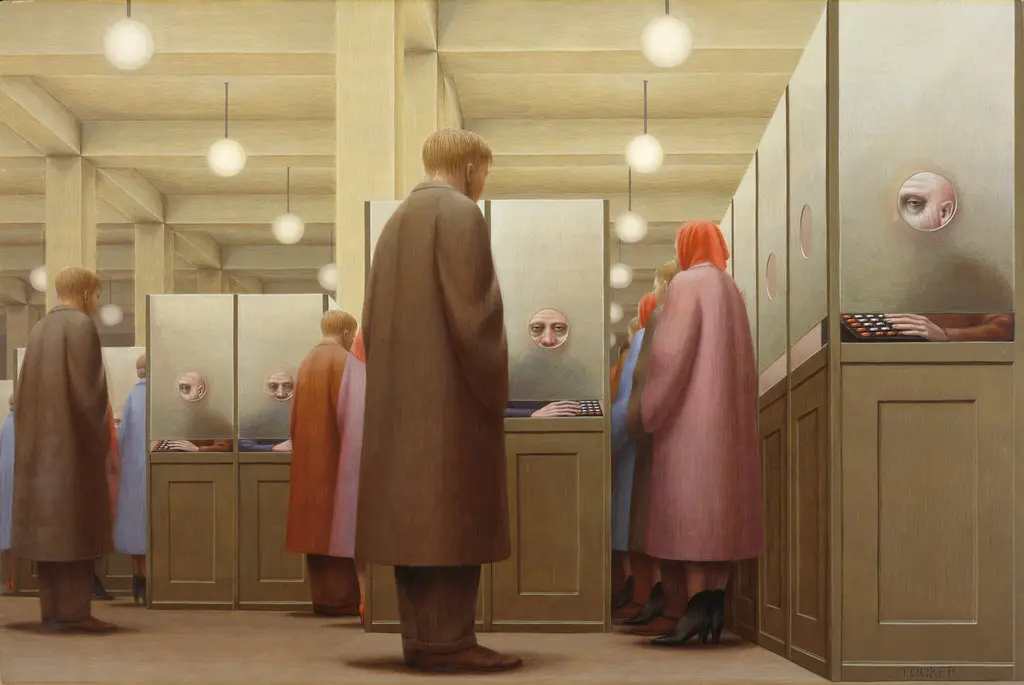
George Tooker's "Government Bureau" (1956)

Recently I found myself in a situation where “Googling” was useless. I was trying to recall a work of art without knowing the artist, title, or country of origin.

Note: At some point in my life, I had seen George Tooker’s “Government Bureau” (1956) – a striking image (above) that had burrowed into my memory. But I lacked the descriptors that would work in a traditional text-based search.

Armed with nothing but a vague sense of the era and the artwork’s elusive “feel,” I turned to Meta AI for assistance. What followed was a bit magical—a journey through memory cubicles that led me to the masterpiece I sought.

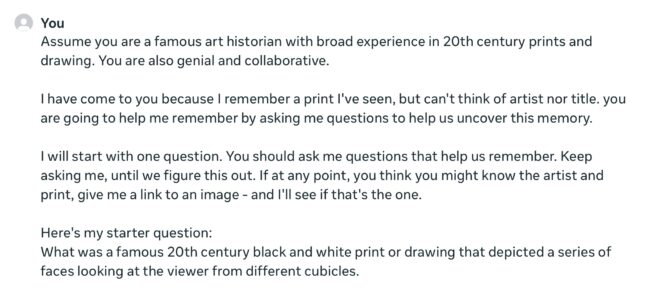
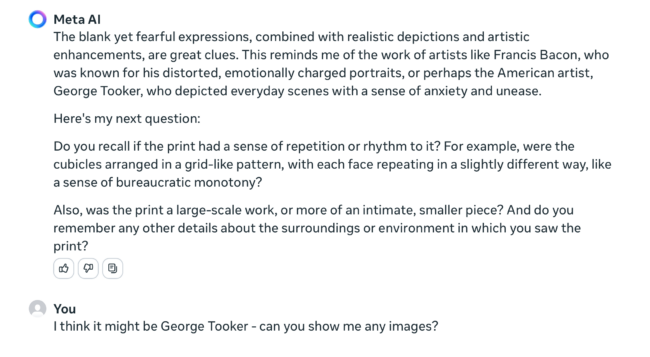
It began with this prompt

You’ll notice that my prompt tells Meta AI “who it is.” That’s a critical step in getting any AI to approach the task from a more specified perspective.

Next, I outlined the Q and A process we would use. This was essential, since I wanted the AI to ask follow up questions to narrow in on a solution. For fun, I gave it a bit personality – “genial and collaborative.” Also note that I incorrectly say it’s a black and white image.

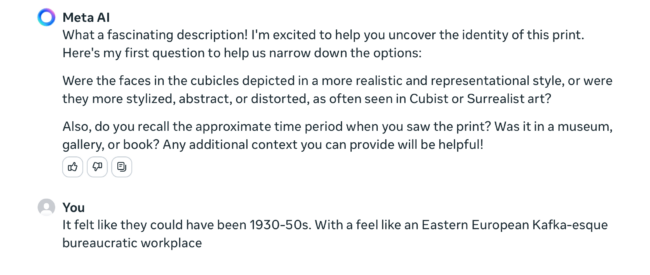
Here’s a screenshots of Meta AI’s first response- the questions were logical – style, time period and where I might have seen it.

My response gave a date range but really focused on how the “feel” of the image in my memory – I said “Eastern European Kafka-esque bureaucratic workplace.”

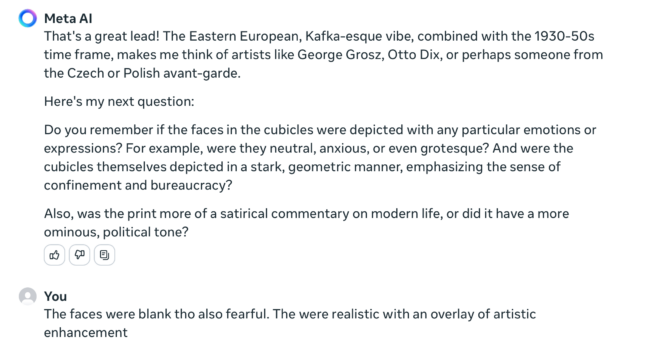
In its second response, Meta AI noted my “Kafka-esque vibe” (a clever rephrasing). It pointed me to artists like Grosz and Dix. (I checked those artists and didn’t see any possibilities) And it posed a few more questions on how I remembered the faces and tone.

The best I could recall about the faces was they were blank and fearful. I added that the faces were “realistic with an overlay of artistic enhancement.” (Not the best description I’ve ever crafted.)

By Meta AI’s third response, it had correctly identified Tooker as a possibility.

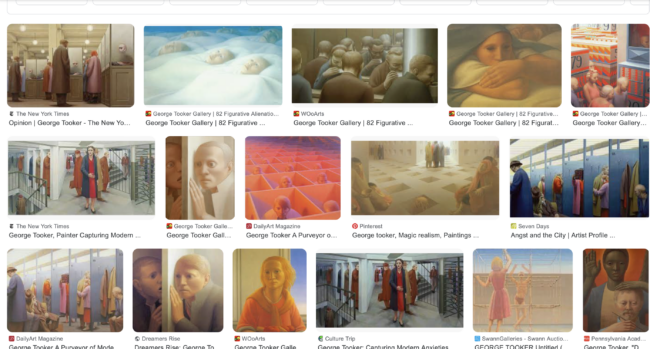
I suddenly remembered the artist and asked to see some samples. Meta AI then pointed me to Google search of Tooker works (below) and there it was in upper left.

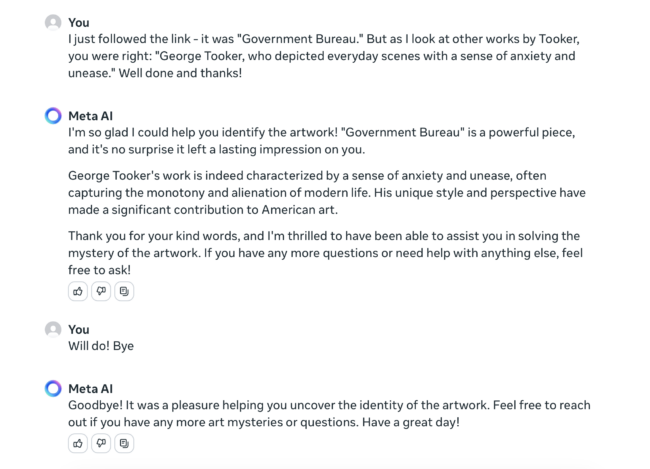
I was so impressed, I congratulated Meta AI for solving my query in such short order. It seemed like the thing to do. After some pleasantries, we signed off.

Comparing AIs

After this success with Meta AI, I thought I’d try the same prompt with other leading AIs. Note: I pretended not to know the answer and kept my responses limited to just the information I gave to Meta AI on the first run.

I was using the free versions. Here’s how they compared:

  • Meta AI (above)- Identified artist in 3rd response and linked to “Government Bureau” in 4th.
  • Microsoft CoPilot – Identified artist and suggested it might be “Government Bureau” in 3rd response.
  • Anthropic Claude – On it’s 9th response, it mentions Tooker but hallucinated a title he did not create.
  • Google Gemini – Keeps suggesting artists and on 6th response, it gave up and wished me luck.
  • Perplexity – gives up after 5th response. (But it did begin with a fun opening response: “clears throat and adjusts monocle. Ah, I believe I may know the work you are describing, my dear fellow! Let me ask you a few questions to jog your memory”
  • ChatGPT 3.5 – patiently guessed artists and styles. But I quit after 11th response when its suggestions began to drift off track.

Here’s why AI beats a traditional search engine in this use case:

A traditional search engine like Google relies heavily on keywords and metadata. When you search for an image, it looks for matches based on text associated with images across the web, such as titles, descriptions, tags, and other textual content. This means you need to have some specific information or keywords related to the image to start your search.

AI-driven image retrieval systems use machine learning algorithms to understand the content of the images themselves. They can analyze visual elements such as color, shape, texture, and even abstract concepts like the emotion an image might evoke. This allows them to find matches based on visual similarity rather than relying solely on text descriptors.

This process is often referred to as content-based image retrieval (CBIR), which is a feature of AI that can search and retrieve images from large data sets based on user-generated cues, even if they are as abstract as feelings or vague visual recollections.

So, if you’re using AI for this purpose, you don’t necessarily need to know specific details about the artwork. You can provide a description of what you remember, and the AI can interpret that description to find images that are visually similar to what you’re describing. It’s a more intuitive process that mimics the way humans might try to find something based on vague recollections, rather than the precise keyword matching used by traditional search engines

Getting Started with the AI Toolkit

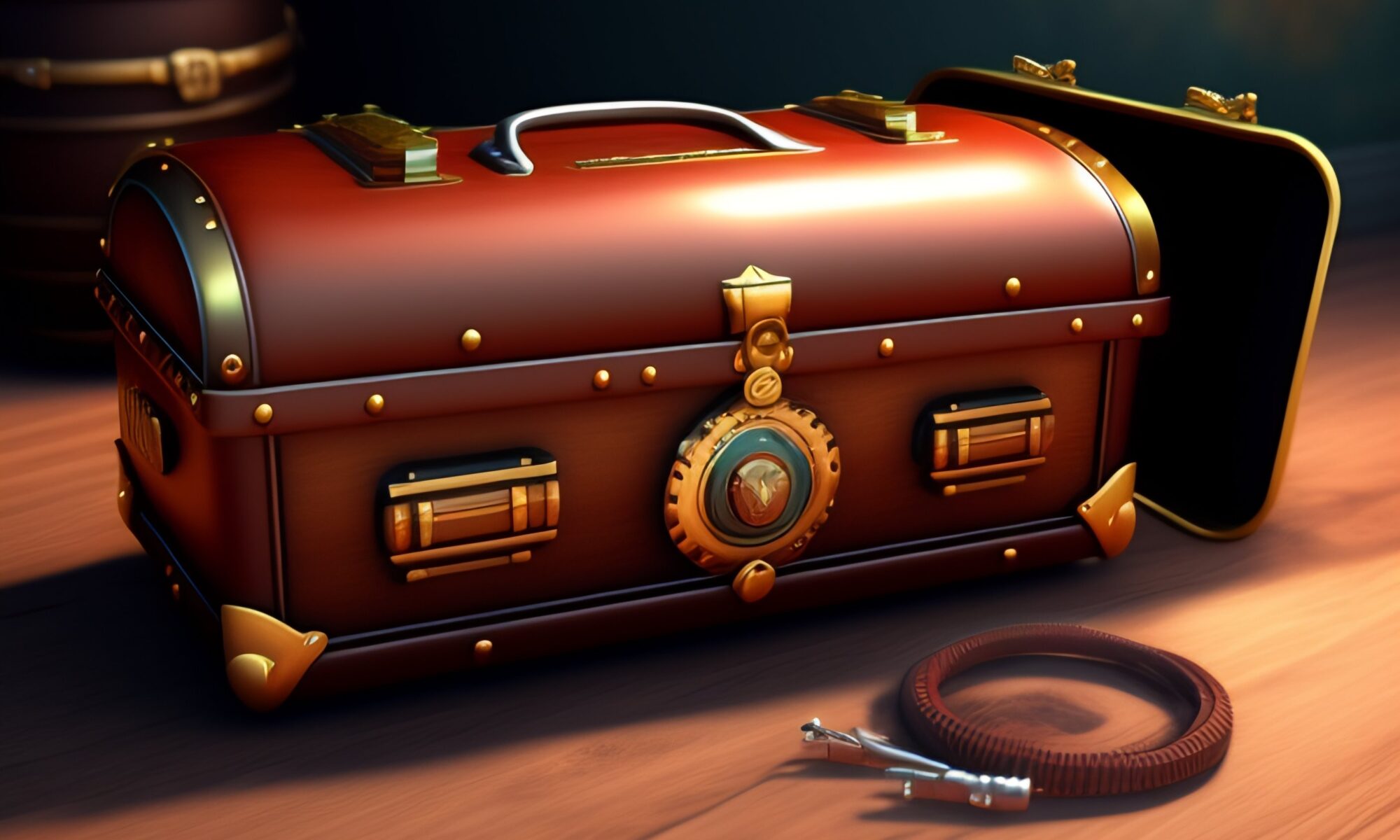
AI-generated with Lexica. I used prompt: “A steampunk tool box in a mysterious setting“

I’ve been exploring AI use for teachers and students for the past view months. I recently was interviewed by Aaron Maurer for his educator’s podcast “Peter Pappas And How AI Is Challenging Educators To Rethink Practices Of Teaching And Learning“

Listen on Apple Podcast

Listen on Spotify


Here’s an AI Toolkit that I designed to assist students and teachers with integrating AI into teaching and learning. This is reposted from my course website: EdTechMethods


Since the recent launch of ChatGPT – Artificial intelligence (AI) tools are in the news. Here’s a brief list of AI tools and resources. All are free (or have free intro promotions). We will be integrating them into our course over the semester.


OUr Course AI Policy

You are free to use AI tools in this course for your weekly assignments. Some assignments – like this week’s – will require it. You are free to use AI in creative ways. But be sure to always site AI use as noted in #1 below. See my example at the end of this page.

Be aware of the limits of ChatGPT and other text generating apps:

  1. AI is a tool, but one that you need to acknowledge using. Please include a paragraph at the end of any assignment that uses AI explaining what you used AI for and what prompts you used to get the results. Failure to do so is in violation of academic honesty policies.
  2. If you provide minimum effort prompts, you will get low quality results.
  3. You will need to refine your prompts in order to get good outcomes. This will take work.
  4. Don’t trust anything it says. If it gives you a number or fact, assume it is wrong unless you either know the answer or can check in with another source. You will be responsible for any errors or omissions provided by the tool. It works best for topics you understand.
  5. Be thoughtful about when this tool is useful. Don’t use it if it isn’t appropriate for the case or circumstance.
  6. AI is a tool. It is not always the right tool. Consider carefully whether, given its weaknesses, it is right for the purpose to which you are planning to apply it.
  7. There are many ethical concerns you need to be aware of. AI can be used to infringe on copyright, or to cheat, or to steal the work of others, or to manipulate. And how a particular AI model is built and who benefits from its use are often complex issues, and not particularly clear at this stage. Ultimately, you are responsible for using these tools in an ethical manner. Be transparent about how you use AI, and take responsibility for the output you create ~ adapted from Ethan Mollick

Start Here: How to use AI to do Practical Stuff: A New Guide

And  Seven Ways of Using AI in Class
writing Tools – type in prompt / get a text response
  • Access GPT4 without a key or invitation on Hugging Face. | Link
  • ChatGPT | Link. First create an OpenAI account to log in (registration may require a phone number)
  • Best option if ChatGPT is down, use  OpenAI Playground
  • Perplexity | Link Better at looking information up than generating new ideas. But shows sources and lets you edit them out or add new sources. [Click 3 dots in upper right of the response.]
How to Create writing Prompts
AI Plagiarism Detectors
  • GPTZero. Built for educators. Paste in text and see if its created by AI | Link
  • GPT-2 Output Detector – Paste in text and see if its created by AI | Link

image Tools – Type in descriptors (or upload image) / get an image response
  • Lexica | Link Requires sign up (my favorite of this group)
  • DALL-E | Link Requires sign up
  • Midjourney | A powerful image generator on Discord. Link to QuickStart guide
  • Image Maker | Link Free to use Stable Diffusion-powered text to image generator
  • Karlo Generator| Link Can be a bit wonky and only produces low resolution images, but no sign up needed.
  • Image Mixer | Link Combine multiple images into one. No sign up needed
How to Create Image Prompts
  • How to use AI image prompts to generate art (this post references Microsoft Designer, but tips work with all image generators) | Link to article
  • DALLE-E Prompt Book | Link

Audio / Video Tools
  • AssemblyAI – extract transcription, summary or topic detection from a video | Link
  • Google Speech-to-Text | Link | Free sign up
  • Google Text-to-Speech | Link | Free sign up

AI note for this page: I elected to use AI to generate a featured image for this page. Thought it would be proof of concept. I used Lexica and this prompt: “A steampunk tool box in a mysterious setting.” It took me a number of tries to add descriptor prompts to get something I wanted. The final image included some elements that make no sense – what’s the “screen” at right and cables in foreground? Mysterious?

Our first AI Lesson