Teaching Innovation? Inspire Your Students with Maker Faire

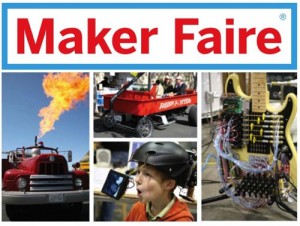
Last month’s Maker Faire drew do-it-your-selfers from across the country to San Francisco to show off their creations. While the rest of us seem content to buy what we need, there is a dedicated community of tinkerers out there that is keeping the American tradition of backyard innovation alive. Why not showcase their work to inspire your students to think more creatively?

I’ve made the point that schools need to foster creativity to prepare our students for a future that will put a premium on adaptability. Innovation requires both a strong foundation in content knowledge and the ability to apply that knowledge in new ways – usually across a variety of disciplines. And it requires using all of Bloom’s skills from remembering through creating. Creating is not a skill limited to the gifted. It’s something that all students can do – think of it as a new combination of old elements.

If you’re looking to inspire your students, you might send them online to Maker Faire or it’s parent, Make Magazine (or the like-minded site, Instructables.) Even if you’re too timid to let them haul in old washing machine parts, you can give them the opportunity to do paper designs of their creations in the style of Rube Goldberg.

In the meantime enjoy The Best of Maker Faire 2008

Looking for Copyright-free Historic Images?

The Smithsonian collection of photos has become part of the Flickr Commons group and joins the photo collections of other institutions such as The Library of Congress, the Brooklyn Museum and the Powerhouse Museum. The Commons was launched on January 16 2008, in a pilot project in partnership with The Library of Congress. Both Flickr and the Library were overwhelmed by the positive response to the project!

Plus you can search these images with PicLens, a  free plug-in, which works in Internet Explorer, Firefox, Flock, and Safari. It lets you create a moving wall of images where you'd otherwise just see your Web app's more static display of pictures. Launching the viewer is just a matter of clicking a new "play" icon that appears on images when you're on a PicLens-supported site. 

Piclenswall2_340x170

Using Apple Keynote with TurningPoint Audience Response System

For many years I've used TurningPoint (TP) ARS in my presentations using PC PowerPoint. I'm a convert to Keynote from PowerPoint and I figured out a way to use TP along with Apple Keynote (KN) presentations.  I thought I'd share my work-around with others.

Software and equipment:
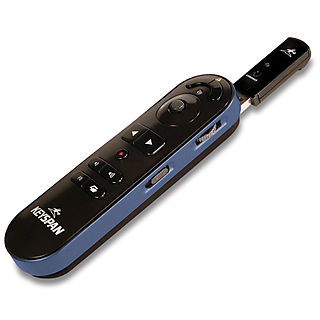
I make two presentations – a Keynote talk and a PowerPoint for Mac with TP questions.  Since I usually work with large audiences and move around a lot, I needed a solution that did not force me to stay at my laptop. I run the show on my MacBook using a Keyspan Presentation Pro Remote (PR-Pro3 $79). I have programed the remote to run both shows and serve as an application switcher. I switch between the two programs and the system has worked very well. I now use the graphic power of Keynote and the audience engagement of TurningPoint!

Presentations: Make a KN presentation. Make a PPT question slide show with TP questions.

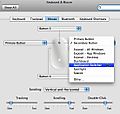
System PreferencesScreenSnapz002 Laptop settings: Open System preferences / Keyboard and Mouse. Set the mouse tracking to slow. Set secondary button to application switcher. (Note: you will only get these choices is you are using have an Apple wireless mouse and turn it on.


Controls on the Keyspan remote:Prpro3_ext01_r_hi
You will be using three sets of controls. Listed in order starting at the top of the remote.
1. Left and right mouse – Use the left mouse as you normally would – to select. Your MacBook system preferences setting have converted your right mouse to an application switcher.
2. Mouse track button – use to move the mouse
3. Right and left triangles – use to advance either the PPT or Keynote presentation. Also use to navigate between programs when you are in application switcher mode.

Using the remote to make your presentation.
1. Open both the KN and  TP/ PPT presentations in presentation modes. Close all other programs.

2. I'll assume you begin the presentation in KN. Advance the show using the right triangle. When you are ready for your first TP question, press the Keyspan's right mouse. Your open applications will appear as icons over the top of the KN presentation. Use the right / left triangles to navigate to the PPT icon. Press the Keyspan right mouse a second time and PPT will open in presentation mode.

Continue reading “Using Apple Keynote with TurningPoint Audience Response System”

Motivate Students with FlipNLearn

I’m proud to serve as the educational advisor to FlipNLearn –  the innovate foldable that students design, print and share.  FlipNLearn uses a special pre-formatted paper and FREE design software to make it easy for students in grades 3 through  high school to design, print, share and learn. FlipNLearn enables students to think like designers, to apply their learning strategies and to organize and express their learning. It exemplifies the best of the information revolution –students as creators of content rather than as a passive audience.

FlipNLearn uses research-based CCSS learning strategies that produce results. FlipNLearn helps students master course content while developing project management and teamwork skills. Students are motivated by producing tangible evidence of their learning. Creating and sharing a FlipNLearn promotes peer discussion of both content and design decisions. It serves as an authentic assessment when shared with the wider audience of friends and family.

Visit FlipNLearn to find out more. 

One to One Computing Goes Global – “Give 1, Get 1”

Xo It turns out that the revolutionary XO, the much-touted “$100 laptop,” costs nearly $200. But for a limited time you can donate one to a third world child and get one free for yourself. Plus T-Mobile is offering donors one year of complimentary HotSpot access good for the XO laptop, and any other WiFi enabled device.  The program is called “Give 1, Get 1,” you pay $400 and One Laptop Per Child (OLPC) donates a laptop to a deserving child.  By Christmas, you get an XO laptop plus an $200 tax deduction.

OLPC states that the goal is:

One learning child. One connected child. One laptop at a time.
The mission of One Laptop Per Child (OLPC) is to empower the children of developing countries to learn by providing one connected laptop to every school-age child. In order to accomplish our goal, we need people who believe in what we’re doing and want to help make education for the world’s children a priority, not a privilege. Between November 12 and November 26, OLPC is offering a Give One Get One program in the United States and Canada. During this time, you can donate the revolutionary XO laptop to a child in a developing nation, and also receive one for the child in your life in recognition of your contribution. More

David Pogue of the New York Times gives the XO a great review and writes, “it’s a  laptop that’s tough and simple enough for hot, humid, dusty locales; cool enough to keep young minds engaged, both at school and at home; and open, flexible and collaborative enough to support a million different teaching and learning styles.” More plus a video demo 

Better hurry, the program ends November 26 and OLPC says that this is the only time these laptops will be available to the general public.