Rewinding History with AI: A Timeline Technique that Teaches Perspective

Teaching historical thinking with a million-year timeline, three clashing perspectives—and a little help from ChatGPT

When educators talk about using AI in the classroom, the focus often lands on students generating content. But here’s a twist: what if AI empowered the teacher—and the real thinking happened in the hands of the students?

That was my aim with this new lesson where I used ChatGPT as a collaborative planning partner to generate layered, perspective-rich timelines for a single historical moment: Lincoln’s Emancipation Proclamation. By feeding it an event, a geographic anchor, and three divergent points of view, I received detailed “Long Zoom” timelines that stretch from a million years before the event to the day prior.

This “Long Zoom” approach helps students examine how identity, geography, and lived experience shape how people understand history. The timelines serve as rich starting points for student writing, discussion, and visual interpretation.

For this example, I asked ChatGPT to generate Long Zoom approach in conjunction with Lincoln’s Emancipation Proclamation from three perspectives. (I gave it the time eras and perspectives). 


ChatGPT produced the following three timelines

Perspective 1: New England Abolitionist (e.g., Frederick Douglass supporter in Boston)

  • A Million Years Before: The glaciers carve out the New England landscape, which will one day host communities steeped in industry, education, and reform.
  • A Thousand Years Before: Indigenous tribes populate the Northeast; later, European colonizers bring ideas of liberty alongside slavery and religious persecution.
  • A Hundred Years Before: Enlightenment ideas fuel revolution. The Declaration of Independence proclaims “all men are created equal”—but slavery persists.
  • A Decade Before: The Fugitive Slave Act enrages abolitionists. The Boston Vigilance Committee helps escaped slaves. Uncle Tom’s Cabin hits the presses.
  • A Year Before: The war begins. Many abolitionists are frustrated: Lincoln fights to preserve the Union, not end slavery.
  • A Month Before: Word spreads that Lincoln plans to act. Hopes rise: maybe this war will become a moral crusade.
  • A Week Before: Churches hold vigils. Abolitionist newspapers call on Lincoln to follow through. “Free the slaves, and free the nation.”
  • A Day Before: A New Year’s Eve gathering in Boston. Black and white abolitionists alike wait, praying the rumors are true.

Perspective 2: Southern Plantation Owner (e.g., Mississippi cotton planter)

  • A Million Years Before: Rich river deltas form from sediment along the Mississippi, creating fertile soil ideal for cotton and sugar cultivation.
  • A Thousand Years Before: Indigenous societies manage the land. Colonizers arrive, displacing them and bringing enslaved Africans to cultivate cash crops.
  • A Hundred Years Before: The cotton gin transforms the South. A plantation economy based on slavery thrives and shapes its political identity.
  • A Decade Before: Northern “agitation” grows. John Brown’s raid stirs fears. Southerners defend slavery as a “positive good.”
  • A Year Before: Secession. Mississippi and others leave the Union. The Confederacy is born to protect its way of life—economic, racial, and cultural.
  • A Month Before: Reports of Union advances and slave uprisings spread. Lincoln is rumored to be planning something drastic.
  • A Week Before: Confederate papers dismiss Lincoln’s threats. But behind closed doors, panic simmers—what if he really frees them?
  • A Day Before: At the plantation house, tension. Will the war now destroy not only the Confederacy, but the entire Southern order?

Perspective 3: Enslaved Person (e.g., a field worker on a Virginia plantation)

  • A Million Years Before: The rivers and valleys of the Piedmont region form, giving rise to fertile tobacco and cotton fields where generations will toil.
  • A Thousand Years Before: Ancestors live freely in West Africa—until colonial powers begin kidnapping and trafficking millions across the Atlantic.
  • A Hundred Years Before: Enslavement is the law of the land. Families are broken. Whippings, labor, and laws enforce silence.
  • A Decade Before: Whispered stories of escape. Maybe freedom in the North. Maybe a better life for the children, someday.
  • A Year Before: Rumors swirl—there’s a war. Some say Lincoln is fighting for the slaves. Others say nothing will change.
  • A Month Before: A Union soldier passes through. He tells them: “Hold on. Lincoln’s got something coming.”
  • A Week Before: Work continues. Overseers harsher than ever. Still, the air feels different. Something is coming. People start to pray.
  • A Day Before: Night falls. In the cabins, people gather. Someone says tomorrow is the day. A name is passed from mouth to mouth: Emancipation.

Here’s a lesson using these timelines:

Voices Before Freedom — Understanding the Emancipation Proclamation through Historical Perspective

Introduction: The Power of the Long Zoom

History isn’t just about names and dates—it’s about perspective, and the layers of causes that lead to an event. In this lesson, we’ll use a tool called the “Long Zoom” timeline—a storytelling technique that begins millions of years ago and zooms in through time to focus on a single moment.

This method allows us to explore how geography, environment, culture, politics, and personal experience all contribute to the meaning of an event. Just like a camera zooming from space down to a city street, we’ll look at the Emancipation Proclamation not just as a historical decree, but as the culmination of many forces—seen from three very different perspectives:

  • A New England Abolitionist
  • A Southern Plantation Owner
  • An Enslaved Person in the South

Each person stands in the same moment—January 1, 1863—but they arrived there differently, and they understand it differently.

Objective

Students will analyze and interpret three different perspectives leading up to the Emancipation Proclamation to better understand how identity, environment, power, and historical scale shape the way people experience history.

Materials

  • Printed or digital copies of the three layered timelines (8 entries per perspective)
  • Reflection worksheet with guiding questions (optional)
  • Art supplies or digital drawing tools (for visual option)
  • Rubric or checklist for student products

Launch / Warm-Up Prompt:

The Emancipation Proclamation was one event, but it meant very different things to different people. What shapes the way we understand a historical event?

  • Brief class discussion
  • Teacher introduces the Long Zoom structure (Million → Thousand → Hundred → Decade → Year → Month → Week → Day)
  • Preview the three perspectives (but don’t yet assign tasks)

Main Activity: Choice Board 

Students choose one of three response formats to explore the timeline from a chosen perspective.

Option 1: Voice from the Timeline (Writing & Performance)

  • Choose one character: abolitionist, enslaved person, or plantation owner.
  • Pick a specific timeline layer (e.g., “A Week Before”) and write a first-person diary entry, speech, or letter.
  • Optional: Read aloud in character.

Option 2: Whose History Is This? (Comparative Analysis)

  • Read all three full timelines.
  • Write a short response analyzing:
  • What each perspective emphasizes or omits
  • How background, status, and values shape historical experience
  • A personal reflection: Whose voice do I identify with? Whose was new to me?

Option 3: Visualizing Perspective (Creative Synthesis)

  • Choose one character’s full timeline.
  • Create a visual interpretation using symbols, colors, and imagery to represent the worldview and emotional tone of each layer.
  • Add brief captions or an artist’s statement to explain your choices.

Closure 

  • Volunteers share something they learned or found surprising.
  • Reflect on the concept of the Long Zoom:
  • What changed for you when you zoomed out—or zoomed in—on history?

Assessment Options

  • Use a rubric or checklist that evaluates:
  • Accuracy and historical understanding
  • Engagement with point of view
  • Depth of interpretation 
  • Creativity and clarity of expression

Note to teachers: Here’s a prompt you could use with your favorite AI tool to replicate this approach to generate three Long Zoom timelines for a historical event from multiple perspectives. Just add your preferred content into the prompt below – then  copy and paste into AI

I am creating a classroom activity to explore historical perspective using a “Long Zoom” timeline approach. Please generate three separate timelines that explore the same historical event, each told from a different point of view.

Each timeline should include eight layered entries representing key stages in the buildup to the event:

• A Million Years Before

• A Thousand Years Before

• A Hundred Years Before

• A Decade Before

• A Year Before

• A Month Before

• A Week Before

• A Day Before

Important formatting: Present each timeline as a narrative from a single perspective, showing how that person or group might interpret the buildup to the event, rooted in their identity, worldview, and experience. The tone should reflect their emotional and cultural position at each stage—not just historical facts.

The final event should be: [INSERT EVENT]

The location anchor should be: [INSERT LOCATION]

The three perspectives should be:

1. [PERSPECTIVE 1]

2. [PERSPECTIVE 2]

3. [PERSPECTIVE 3]

Please format each timeline clearly, with bolded headers for each time layer (e.g., ● A Hundred Years Before) and keep the style parallel across all three perspectives for comparison.

This idea was inspired by “A.I. Is Poised to Rewrite History. Literally.” by Bill Wasik NY Times

Waiting on Apple AI? Launch ChatGPT with a Tap

The iPhone 16’s Action Button, Now AI-Ready
I grabbed the iPhone 16 expecting to geek out over the upgraded camera and shiny screen. But surprise! The action button—the little hero replacing the old mute switch—is the real MVP. With a simple press, I can launch my favorite AI chatbots like ChatGPT, Pi, or Perplexity for instant conversations. The best part? Setting it up was ridiculously easy. Even better? My friends thought I’d uncovered the next big thing. Spoiler: It’s not that revolutionary, but it’s definitely a cool trick.

What Makes This Cool: AI in Your Pocket
Let’s rewind a year: AI chatbots weren’t this conversational, and while the iPhone 15 Pro had an action button, it didn’t feel like a game-changer. Fast forward to the iPhone 16, and now that button lets you summon a bot like ChatGPT for instant help, advice, or even just some company during your commute. One press, and you’re chatting away.

Why Only ChatGPT, Pi, and Perplexity?
Here’s the twist: when I set up the action button, only three of my AI apps—ChatGPT, Pi, and Perplexity—popped up as options. Why? Not all apps support Shortcuts right away. When an app does, iOS can ‘see’ it and offer up Shortcut suggestions based on built-in actions like launching a chat or starting voice mode. For these three, it was a breeze because they came Shortcut-ready. If you’ve got other AI apps installed, give it a try—maybe they’ll show up. Tech moves fast, and who knows what’ll be added next!

How to Set It Up: Easy as 1-2-3 (4-5)
So, you’re ready to give this a shot? Here’s how to set up your action button to launch ChatGPT, Pi, or Perplexity:

  1. Head to Settings..
  2. Tap Action Button.
  3. Swipe through the options until you find ‘Shortcut.’ (I like the illustrations)
  4. Tap the ‘list starter’ at bottom of the screen and search for ChatGPT (or Pi, or Perplexity).
  5. Pick the action you want, like launching ChatGPT directly into voice mode.‘

That’s it! Now, one press and you’re chatting with your AI of choice

Apple’s Not There (Yet)—But You Are
Let’s face it: We’re all waiting for Apple to drop its own AI superpower. Siri’s trying, bless her, but she’s not quite there yet. Until Apple Intelligence arrives, pairing the iPhone 16’s action button with these AI bots gives you a sneak peek of the future—without the clunky conversations.

Button Meets AI—Cool, But Not Earth-Shattering
I’m not saying this is some revolutionary tech moment, but summoning an AI brain with one press? Pretty cool. It was fun to set up, and showing it off definitely earned me some geek points. The iPhone 16 is full of little surprises like this, and while we wait for Apple to bring their own AI into the mix, I’m happily launching ChatGPT, Pi, and Perplexity with a tap. Go on, give it a try—you might just enjoy it.

Hands on With AI

I’m offering a workshop for educational leaders at AI Empowered EDU conference at the University of Portland on May 14. My session is called “Hands on with AI.”

I created this website to support the workshop.

The site gives tips on how to create prompts, best AI assistants, and sample prompts. The prompt library offers sample prompts useful for students, teacher and educational leaders.

It also includes an excellent how-to videos.

Here’s the workshop agenda.

Are you curious about the potential of artificial intelligence in education? Join our interactive workshop to explore how AI can enhance teaching and learning.
Visit the LLMs Page to see suggested AI assistants.


– Hands-On Exploration: Bring your own laptop and dive into practical activities. Collaborate with fellow participants in small groups as we explore AI tools and applications.
– Use Cases: Discover real-world examples of AI from the perspective of student, teacher and administrator. You’ll explore prompts and scenarios that improve efficiency, spark creativity and enhance problem-solving.
– Tool Showcase: The session will feature custom website that showcases AI tools and methods relevant to education.

AI-created featured image above

When Google Couldn’t Help: How AI Helped Me Track Down an Elusive Image

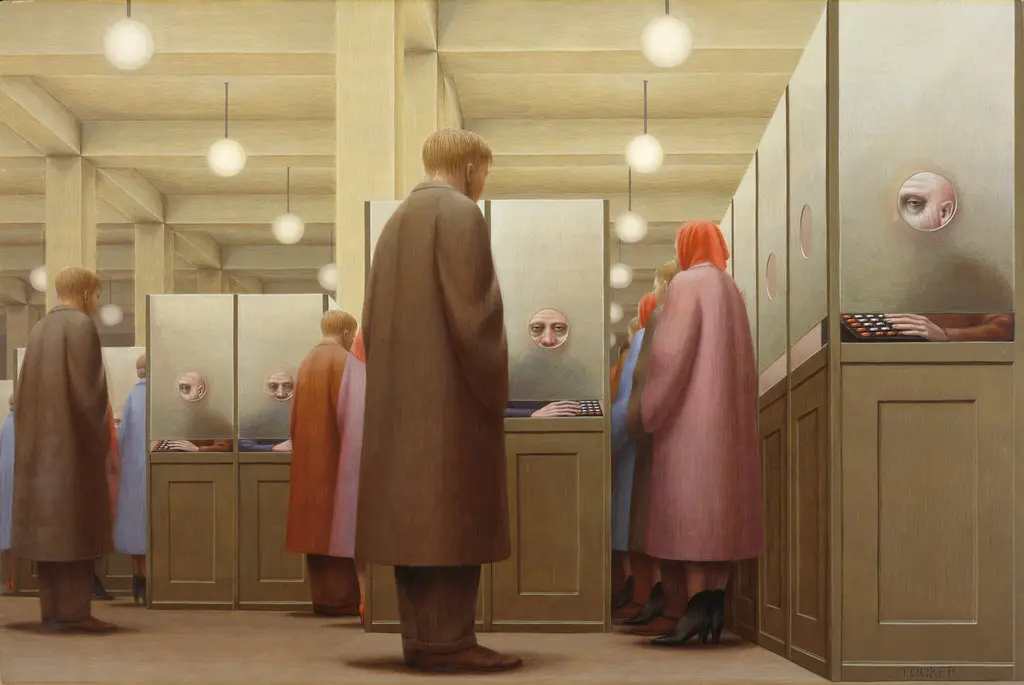
George Tooker's "Government Bureau" (1956)

Recently I found myself in a situation where “Googling” was useless. I was trying to recall a work of art without knowing the artist, title, or country of origin.

Note: At some point in my life, I had seen George Tooker’s “Government Bureau” (1956) – a striking image (above) that had burrowed into my memory. But I lacked the descriptors that would work in a traditional text-based search.

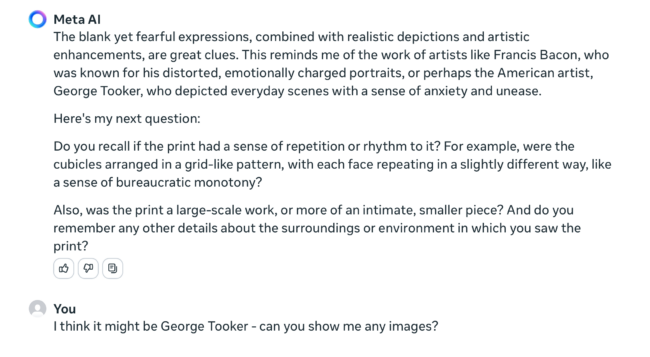
Armed with nothing but a vague sense of the era and the artwork’s elusive “feel,” I turned to Meta AI for assistance. What followed was a bit magical—a journey through memory cubicles that led me to the masterpiece I sought.

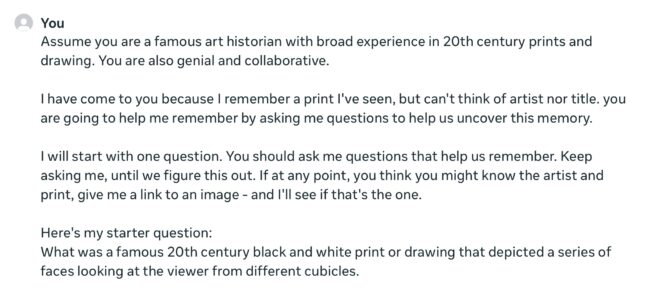
It began with this prompt

You’ll notice that my prompt tells Meta AI “who it is.” That’s a critical step in getting any AI to approach the task from a more specified perspective.

Next, I outlined the Q and A process we would use. This was essential, since I wanted the AI to ask follow up questions to narrow in on a solution. For fun, I gave it a bit personality – “genial and collaborative.” Also note that I incorrectly say it’s a black and white image.

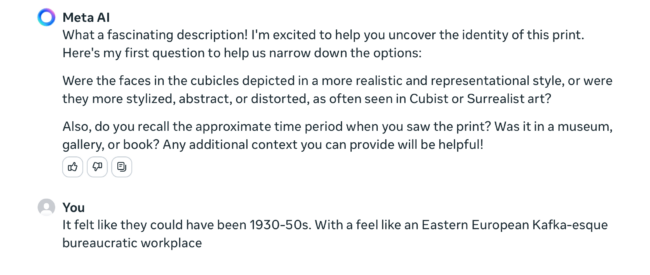
Here’s a screenshots of Meta AI’s first response- the questions were logical – style, time period and where I might have seen it.

My response gave a date range but really focused on how the “feel” of the image in my memory – I said “Eastern European Kafka-esque bureaucratic workplace.”

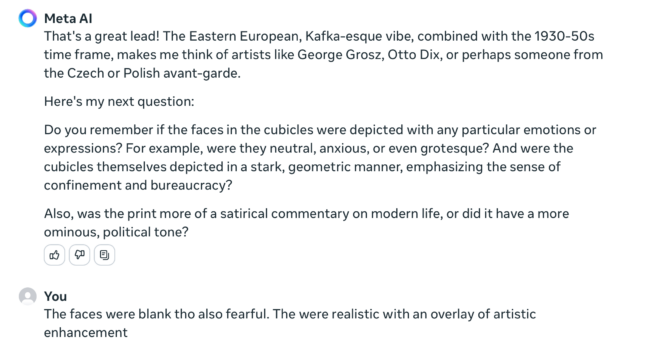
In its second response, Meta AI noted my “Kafka-esque vibe” (a clever rephrasing). It pointed me to artists like Grosz and Dix. (I checked those artists and didn’t see any possibilities) And it posed a few more questions on how I remembered the faces and tone.

The best I could recall about the faces was they were blank and fearful. I added that the faces were “realistic with an overlay of artistic enhancement.” (Not the best description I’ve ever crafted.)

By Meta AI’s third response, it had correctly identified Tooker as a possibility.

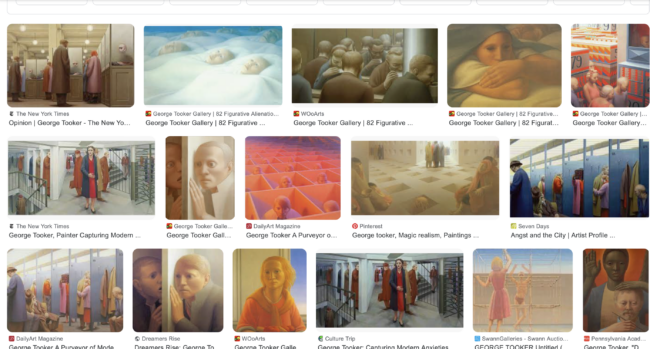
I suddenly remembered the artist and asked to see some samples. Meta AI then pointed me to Google search of Tooker works (below) and there it was in upper left.

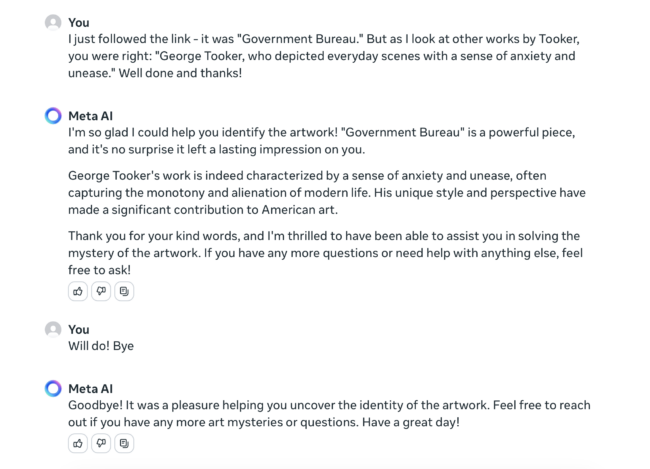
I was so impressed, I congratulated Meta AI for solving my query in such short order. It seemed like the thing to do. After some pleasantries, we signed off.

Comparing AIs

After this success with Meta AI, I thought I’d try the same prompt with other leading AIs. Note: I pretended not to know the answer and kept my responses limited to just the information I gave to Meta AI on the first run.

I was using the free versions. Here’s how they compared:

  • Meta AI (above)- Identified artist in 3rd response and linked to “Government Bureau” in 4th.
  • Microsoft CoPilot – Identified artist and suggested it might be “Government Bureau” in 3rd response.
  • Anthropic Claude – On it’s 9th response, it mentions Tooker but hallucinated a title he did not create.
  • Google Gemini – Keeps suggesting artists and on 6th response, it gave up and wished me luck.
  • Perplexity – gives up after 5th response. (But it did begin with a fun opening response: “clears throat and adjusts monocle. Ah, I believe I may know the work you are describing, my dear fellow! Let me ask you a few questions to jog your memory”
  • ChatGPT 3.5 – patiently guessed artists and styles. But I quit after 11th response when its suggestions began to drift off track.

Here’s why AI beats a traditional search engine in this use case:

A traditional search engine like Google relies heavily on keywords and metadata. When you search for an image, it looks for matches based on text associated with images across the web, such as titles, descriptions, tags, and other textual content. This means you need to have some specific information or keywords related to the image to start your search.

AI-driven image retrieval systems use machine learning algorithms to understand the content of the images themselves. They can analyze visual elements such as color, shape, texture, and even abstract concepts like the emotion an image might evoke. This allows them to find matches based on visual similarity rather than relying solely on text descriptors.

This process is often referred to as content-based image retrieval (CBIR), which is a feature of AI that can search and retrieve images from large data sets based on user-generated cues, even if they are as abstract as feelings or vague visual recollections.

So, if you’re using AI for this purpose, you don’t necessarily need to know specific details about the artwork. You can provide a description of what you remember, and the AI can interpret that description to find images that are visually similar to what you’re describing. It’s a more intuitive process that mimics the way humans might try to find something based on vague recollections, rather than the precise keyword matching used by traditional search engines

Getting Started with the AI Toolkit

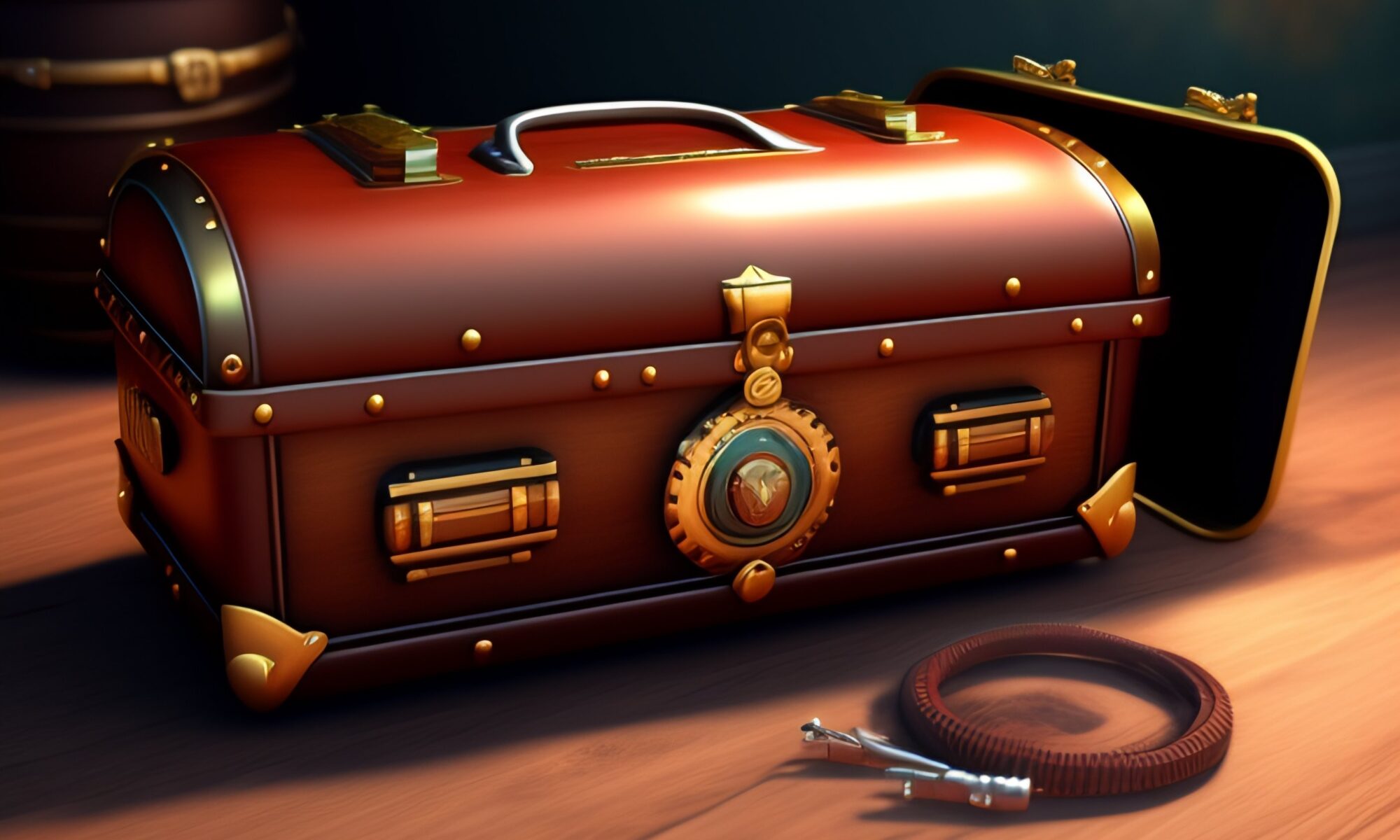
AI-generated with Lexica. I used prompt: “A steampunk tool box in a mysterious setting“

I’ve been exploring AI use for teachers and students for the past view months. I recently was interviewed by Aaron Maurer for his educator’s podcast “Peter Pappas And How AI Is Challenging Educators To Rethink Practices Of Teaching And Learning“

Listen on Apple Podcast

Listen on Spotify


Here’s an AI Toolkit that I designed to assist students and teachers with integrating AI into teaching and learning. This is reposted from my course website: EdTechMethods


Since the recent launch of ChatGPT – Artificial intelligence (AI) tools are in the news. Here’s a brief list of AI tools and resources. All are free (or have free intro promotions). We will be integrating them into our course over the semester.


OUr Course AI Policy

You are free to use AI tools in this course for your weekly assignments. Some assignments – like this week’s – will require it. You are free to use AI in creative ways. But be sure to always site AI use as noted in #1 below. See my example at the end of this page.

Be aware of the limits of ChatGPT and other text generating apps:

  1. AI is a tool, but one that you need to acknowledge using. Please include a paragraph at the end of any assignment that uses AI explaining what you used AI for and what prompts you used to get the results. Failure to do so is in violation of academic honesty policies.
  2. If you provide minimum effort prompts, you will get low quality results.
  3. You will need to refine your prompts in order to get good outcomes. This will take work.
  4. Don’t trust anything it says. If it gives you a number or fact, assume it is wrong unless you either know the answer or can check in with another source. You will be responsible for any errors or omissions provided by the tool. It works best for topics you understand.
  5. Be thoughtful about when this tool is useful. Don’t use it if it isn’t appropriate for the case or circumstance.
  6. AI is a tool. It is not always the right tool. Consider carefully whether, given its weaknesses, it is right for the purpose to which you are planning to apply it.
  7. There are many ethical concerns you need to be aware of. AI can be used to infringe on copyright, or to cheat, or to steal the work of others, or to manipulate. And how a particular AI model is built and who benefits from its use are often complex issues, and not particularly clear at this stage. Ultimately, you are responsible for using these tools in an ethical manner. Be transparent about how you use AI, and take responsibility for the output you create ~ adapted from Ethan Mollick

Start Here: How to use AI to do Practical Stuff: A New Guide

And  Seven Ways of Using AI in Class
writing Tools – type in prompt / get a text response
  • Access GPT4 without a key or invitation on Hugging Face. | Link
  • ChatGPT | Link. First create an OpenAI account to log in (registration may require a phone number)
  • Best option if ChatGPT is down, use  OpenAI Playground
  • Perplexity | Link Better at looking information up than generating new ideas. But shows sources and lets you edit them out or add new sources. [Click 3 dots in upper right of the response.]
How to Create writing Prompts
AI Plagiarism Detectors
  • GPTZero. Built for educators. Paste in text and see if its created by AI | Link
  • GPT-2 Output Detector – Paste in text and see if its created by AI | Link

image Tools – Type in descriptors (or upload image) / get an image response
  • Lexica | Link Requires sign up (my favorite of this group)
  • DALL-E | Link Requires sign up
  • Midjourney | A powerful image generator on Discord. Link to QuickStart guide
  • Image Maker | Link Free to use Stable Diffusion-powered text to image generator
  • Karlo Generator| Link Can be a bit wonky and only produces low resolution images, but no sign up needed.
  • Image Mixer | Link Combine multiple images into one. No sign up needed
How to Create Image Prompts
  • How to use AI image prompts to generate art (this post references Microsoft Designer, but tips work with all image generators) | Link to article
  • DALLE-E Prompt Book | Link

Audio / Video Tools
  • AssemblyAI – extract transcription, summary or topic detection from a video | Link
  • Google Speech-to-Text | Link | Free sign up
  • Google Text-to-Speech | Link | Free sign up

AI note for this page: I elected to use AI to generate a featured image for this page. Thought it would be proof of concept. I used Lexica and this prompt: “A steampunk tool box in a mysterious setting.” It took me a number of tries to add descriptor prompts to get something I wanted. The final image included some elements that make no sense – what’s the “screen” at right and cables in foreground? Mysterious?

Our first AI Lesson